Assigning Resources for Movements
You can edit current resource assignments or complete missing resource assignments.
Complete the following steps to assign resources for movements:
L og in to the ONE system.
On the Movement Schedule pane, click the Assign Resources button. See the "Managing Resource Assignments" page in the Online Help for more information.
The Movement Resource Assignment screen appears. The following movement has no resources assigned to it.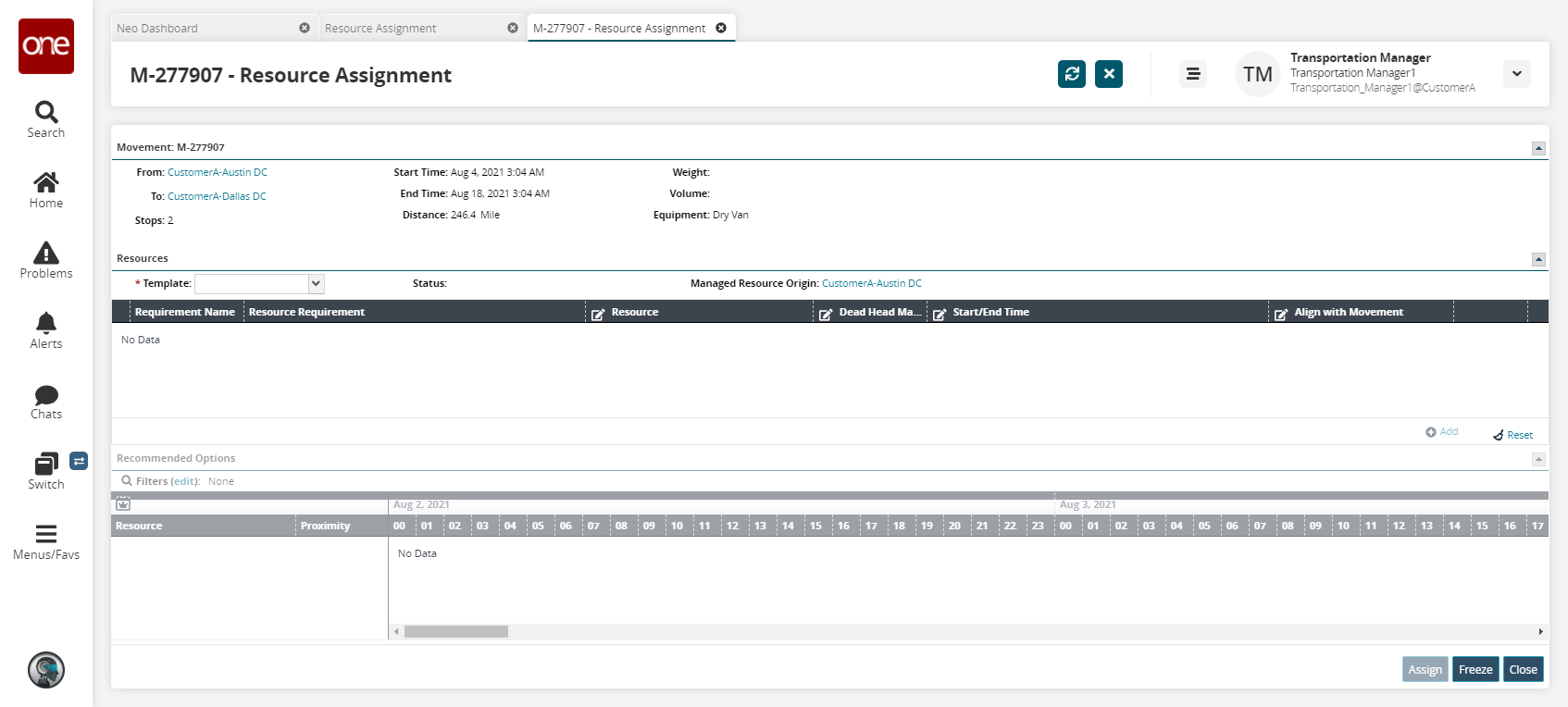
As needed, in the Template drop-down menu, select an option.
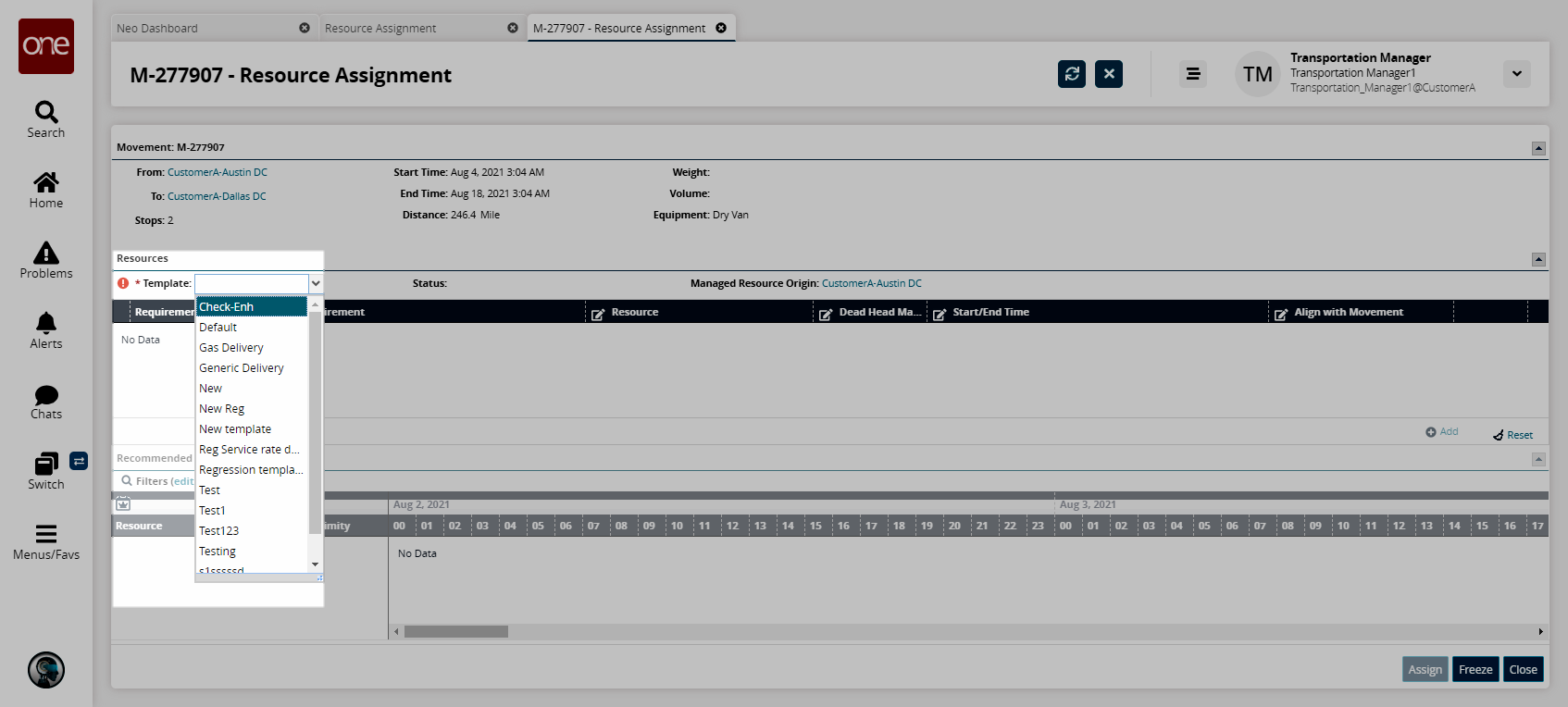
If you change the template for an existing resource assignment, a warning message appears: "All assignments made through this template will be discarded."
The Resources section updates.
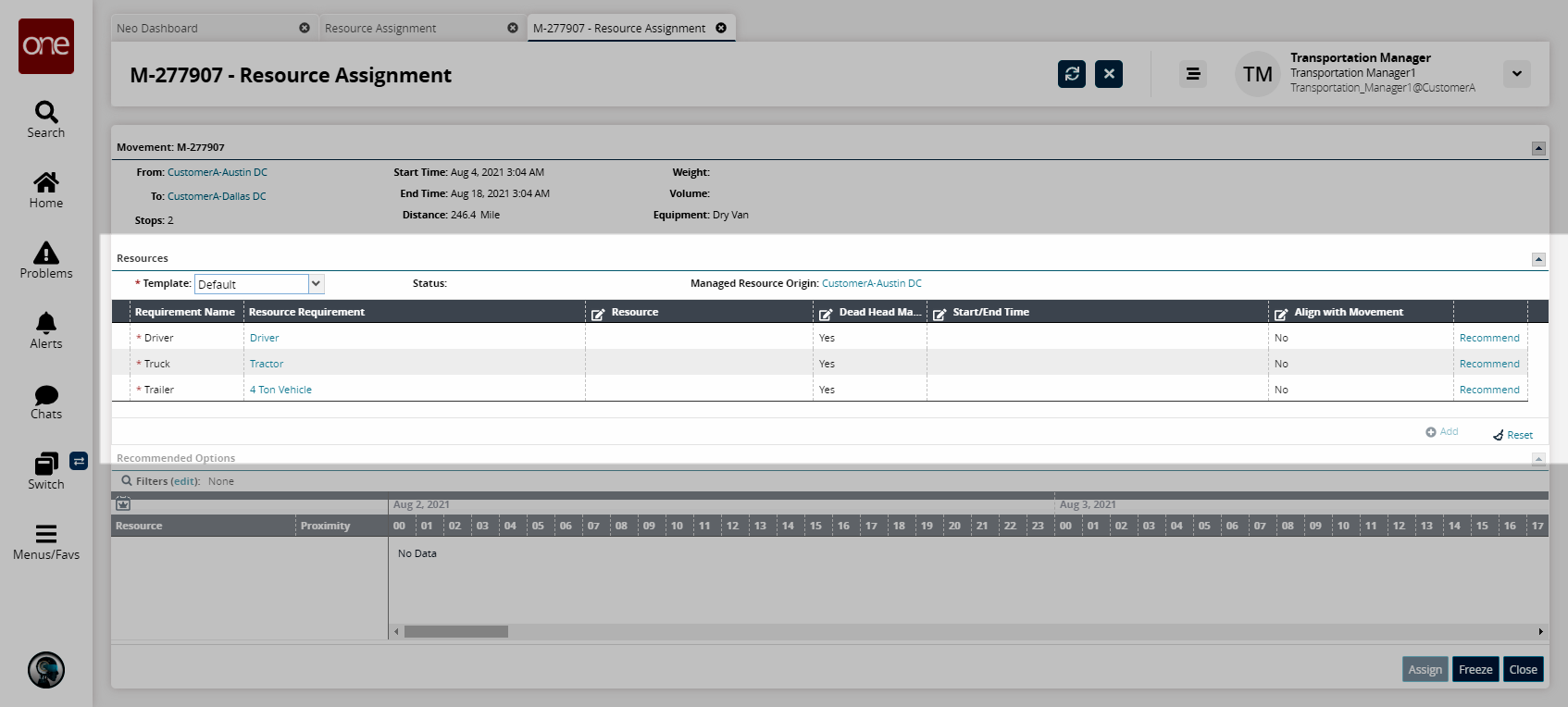
Schedule the resource using one of the following options:
Manually schedule: Click inside the Start/End Time cell, and then select date and time for the Start/End Time range.
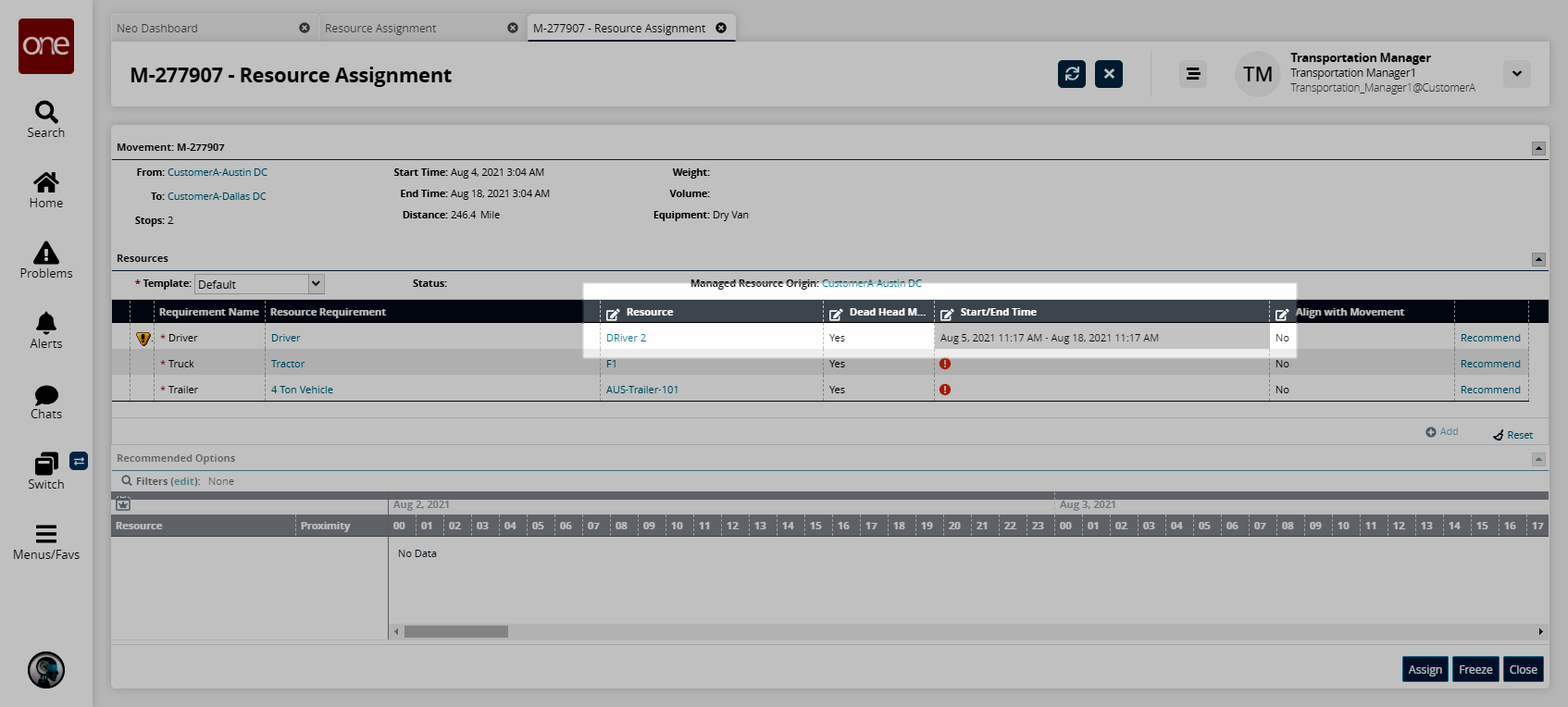
Keep for the duration of movement: Click inside the Align with Movement cell, and then select the checkbox. The value becomes Yes.
The resource will be scheduled from the Start Time to the End Time of the movement as shown in the header.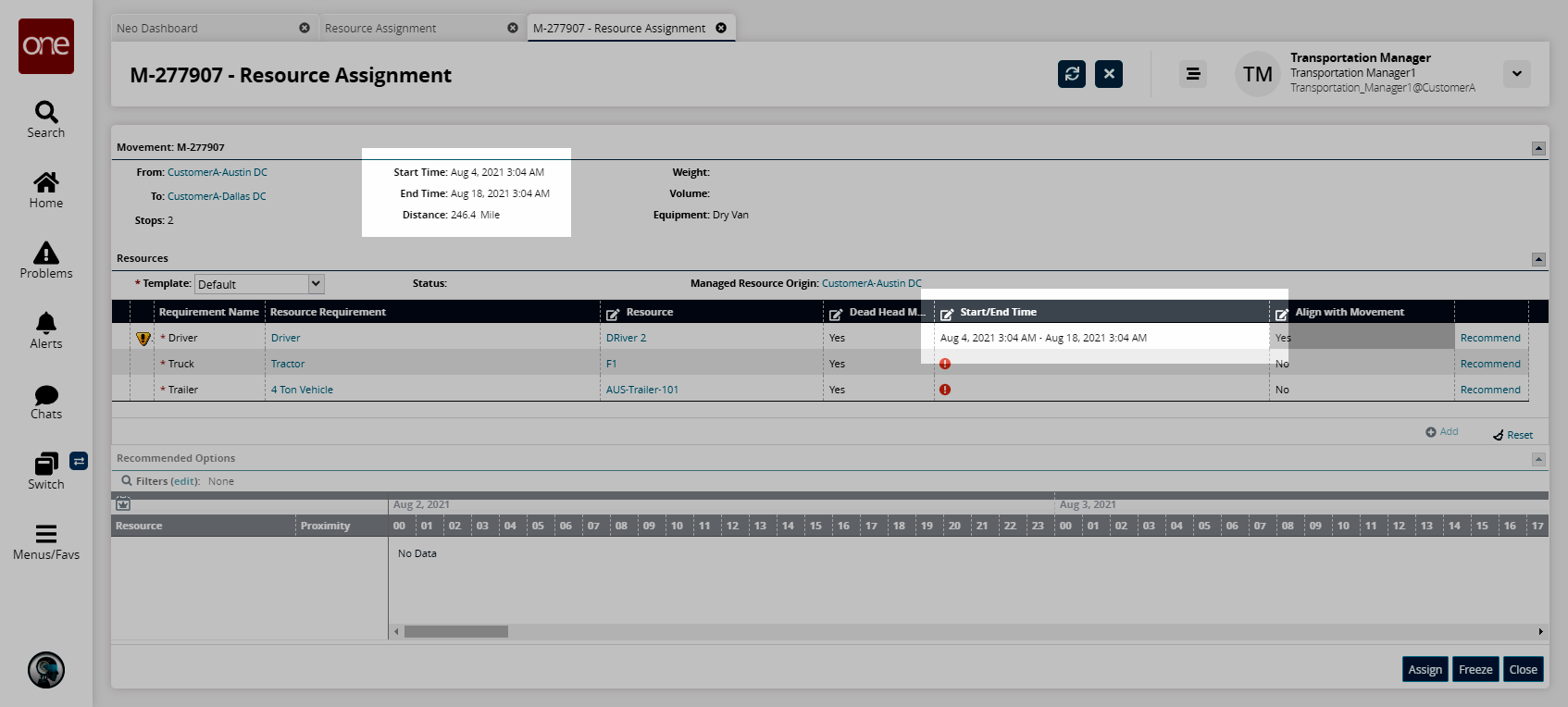
As required, add another resource by clicking the Add button.
A new resource row appears.As an alternate option, you can click the Recommend link to view recommended resources in the Recommended Options section.
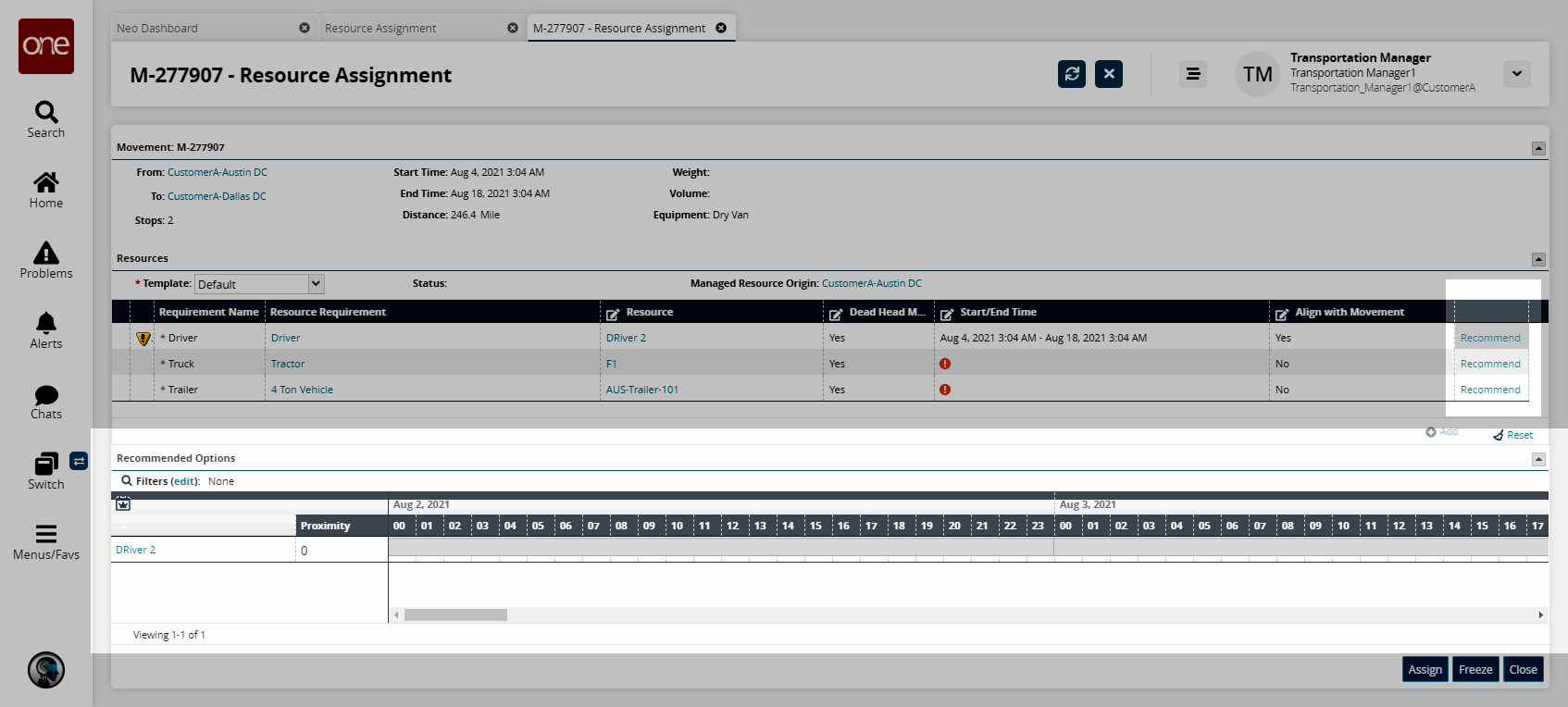
Recommendations are based on the resource being in that geographical area at the time of current movement requirements.
Consideration for other already assigned resources will be given. For example: If Driver "John Doe" has already been selected as a resource, and if John Doe is working with another resource before taking this move, resources used in the previous move will be considered.